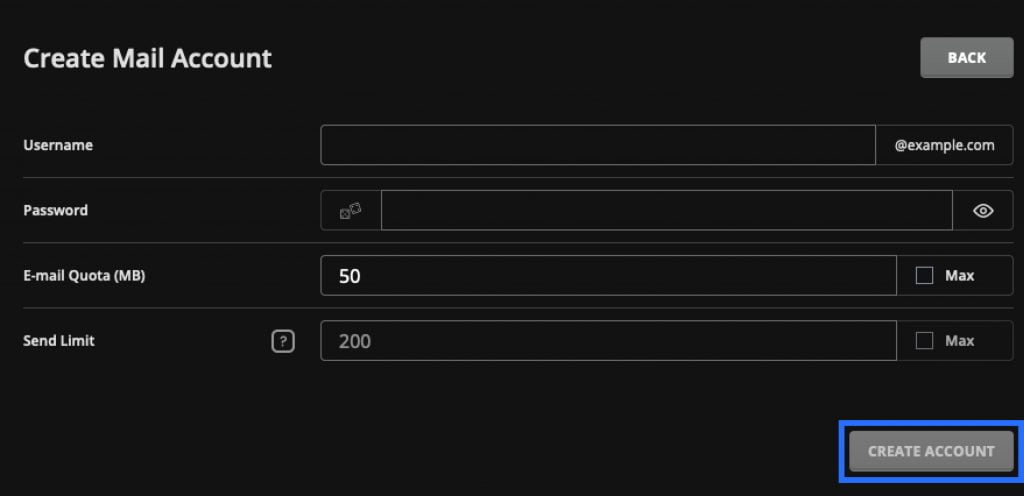

Follow these steps to create email accounts in DirectAdmin:
-
Log in to your Direct Admin Control Panel. For instructions on how to log in to DirectAdmin, please click here.
-
Once logged in, under E-mail Manager, click E-mail Accounts. Alternatively, you can enter ‘E-mail Accounts’ in the search bar at the top of the page.


- Click the Create Account button.

- Enter the parameters for your email accounts.
- Username: The name of the email address. Please note: The domain name is already prefilled.
- Password: It must be at least 9 characters long and contain a lowercase letter, uppercase letter and number.
- E-mail Quota (MB): This is the email storage for the account, by default it is set to 50.
- Send Limit: The number of emails this account can send per hour. Please note: This does not override the “Emails per Hour” that was specified in your plan.
Once the details have been entered, click the Create Account button.